Multi-Platform Onboarding
Overview
Multi-platform onboarding allows a merchant to be onboarded onto more than one payment platform through a single onboarding journey, rather than running a separate onboarding for each platform. For example, a merchant can be onboarded for Adyen card payments and Direct Debit at the same time, with each platform's required sections collected in one flow.
This page focuses on the Direct Debit platform. Direct Debit differs from card onboarding in that it requires a manual review, KYC confirmation and provisioning step performed by an Onboarding Person before the merchant can collect payments.
There are two Direct Debit platforms: ddFmSun (PaySuite Facilities Managed SUN) and ddOwnSun (the merchant's own SUN).
Right now only ddOwnSun is not yet implemented — support for it is coming soon. ddFmSun is fully available, and the remainder of this page describes the ddFmSun flow.
Roles
| Role | Responsibility |
|---|---|
| SoftCo Product | Initiates onboarding by creating the merchant through the Merchant API, including the Direct Debit platform in the request. |
| Merchant | Completes the onboarding flow, providing the business, Direct Debit, contact, account, decision maker and bank details required for assessment. |
| Onboarding Person | Reviews and approves the Ballerine workflow, confirms the KYC status, and completes the provisioning form to enable Direct Debit payments. |
Onboarding Flow
The multi-platform Direct Debit onboarding flow follows four stages:
1. SoftCo Product creates the merchant
The SoftCo Product makes a POST request to the Merchant API to create a new merchant. To onboard the merchant for Direct Debit, the platforms array must include the Direct Debit platform identifier ddFmSun, together with its corresponding configuration object.
POST /api/v2/merchants
{
    "paymentGateway": {
        "platforms": ["adyen", "ddFmSun"],
        "adyen": {
            "...": "..."
        },
        "ddFmSun": {
            "...": "..."
        }
    }
}
For the full request structure and platform-specific configuration, see the Multi-Platform API documentation.
2. Merchant completes the onboarding flow
The merchant is directed into the onboarding journey, where they complete each required section until the flow is finished. The hub presents the union of sections required by the merchant's active platforms, grouped per platform (for example a Cards group for Adyen and a Direct Debits group for ddFmSun).
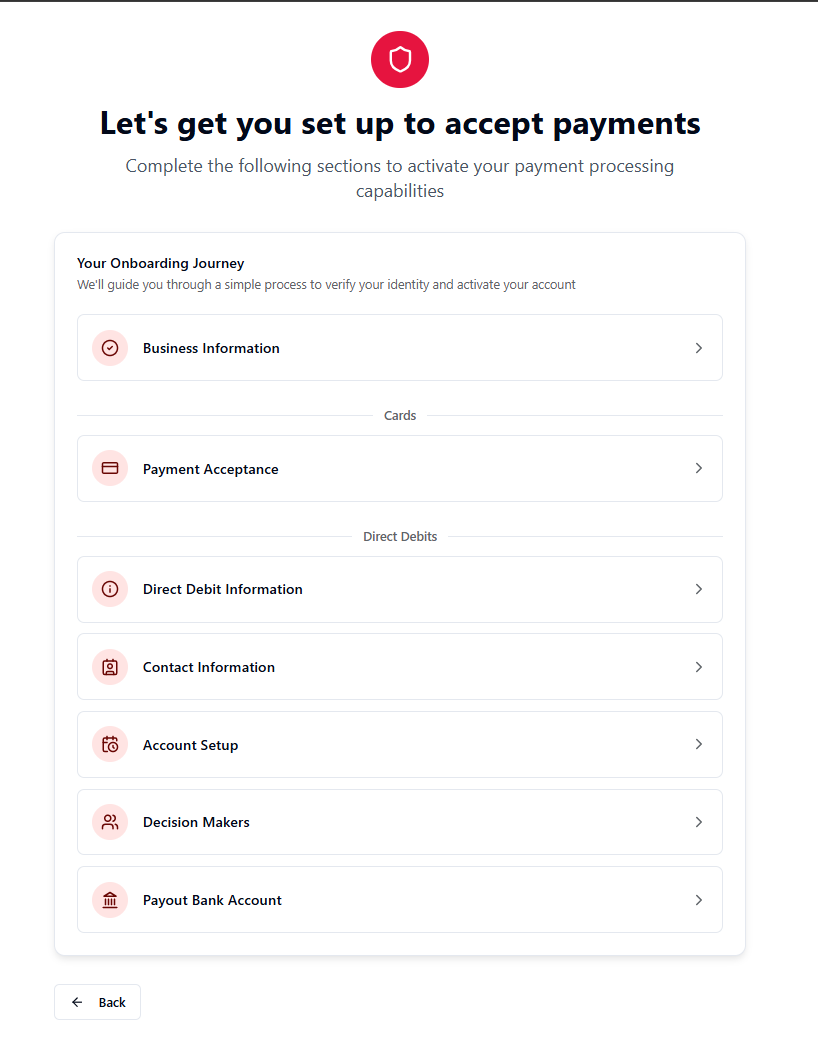
For the ddFmSun platform, the merchant completes the following sections:
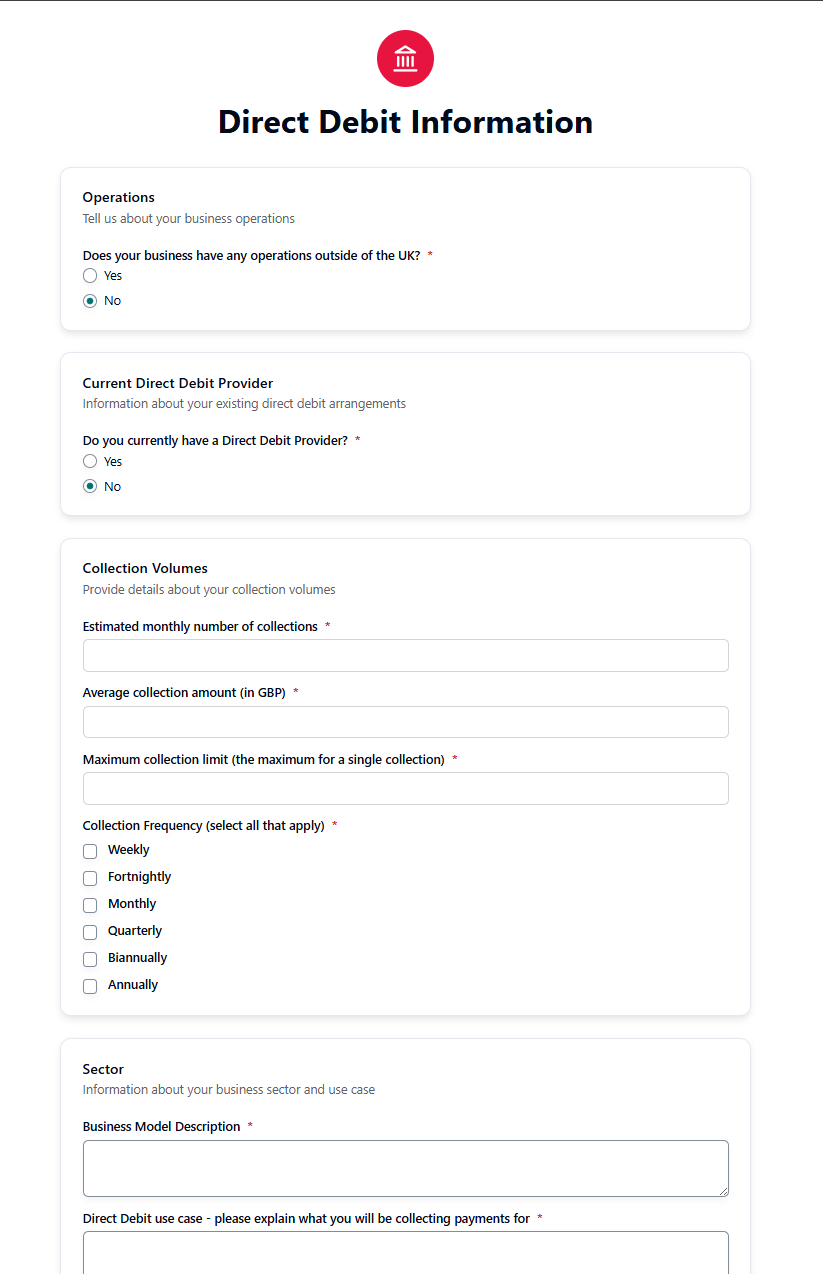
Direct Debit Information
Collects the details required to assess the merchant's Direct Debit application, such as operations outside the UK, current provider, collection volumes and frequencies, and business sector and use case.
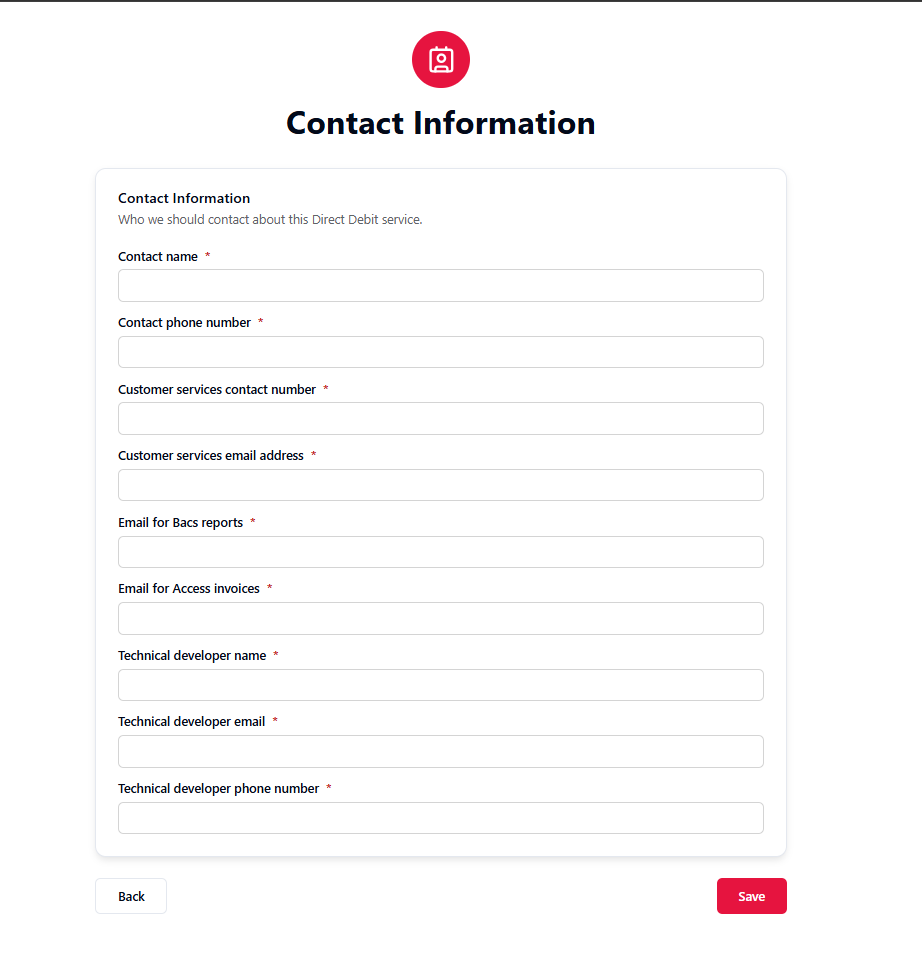
Contact Information
Captures who should be contacted about the Direct Debit service, including customer services contacts, emails for BACS reports and Access invoices, and the technical developer contact.
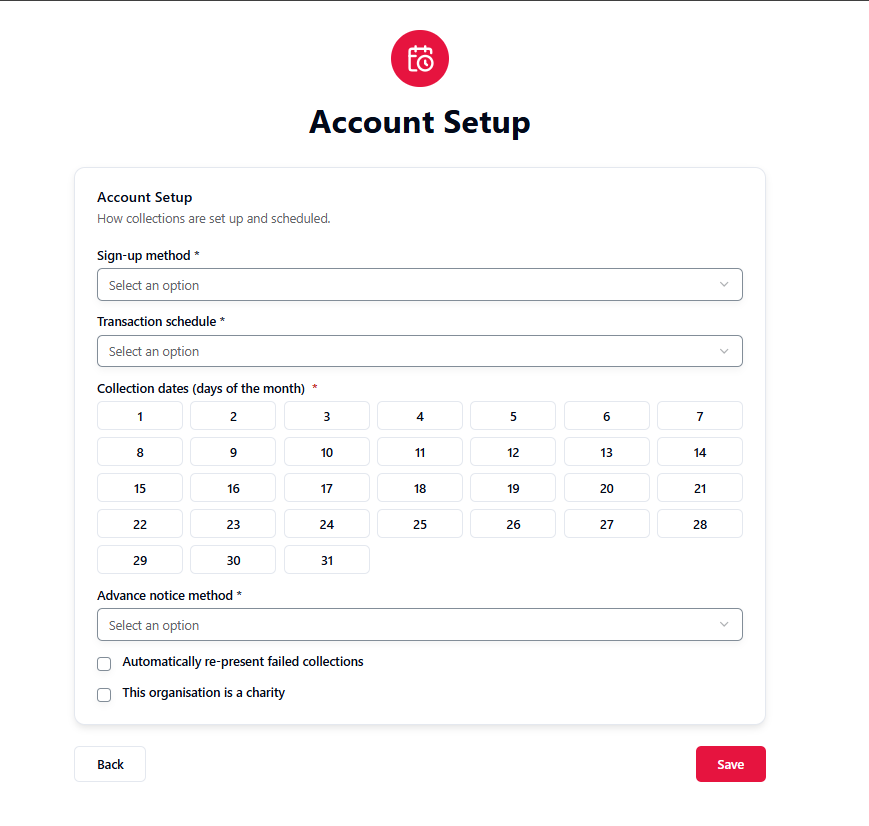
Account Setup
Defines how collections are set up and scheduled — sign-up method, transaction schedule, collection dates, advance notice method, and options such as automatically re-presenting failed collections and charity status.
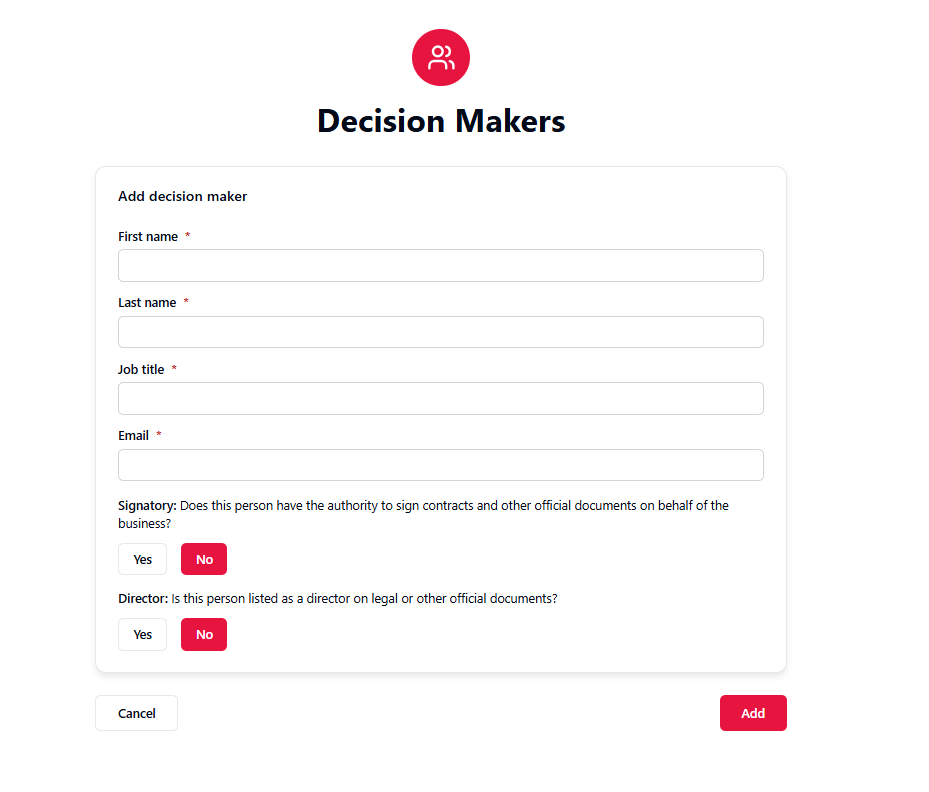
Decision Makers
Captures the people authorised to act for the business, including whether each person is a signatory and/or a director.
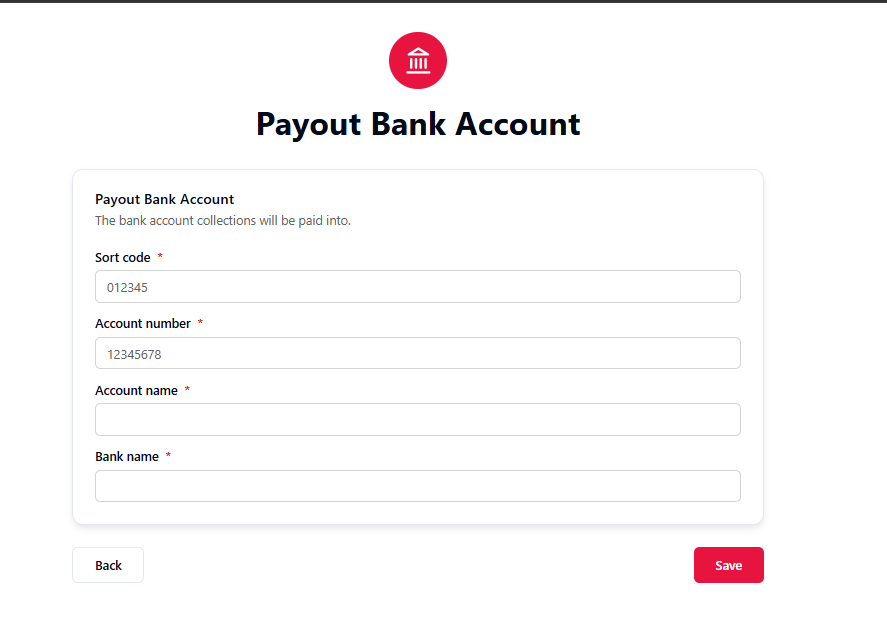
Payout Bank Account
Captures the bank account that collections will be paid into — sort code, account number, account name and bank name.
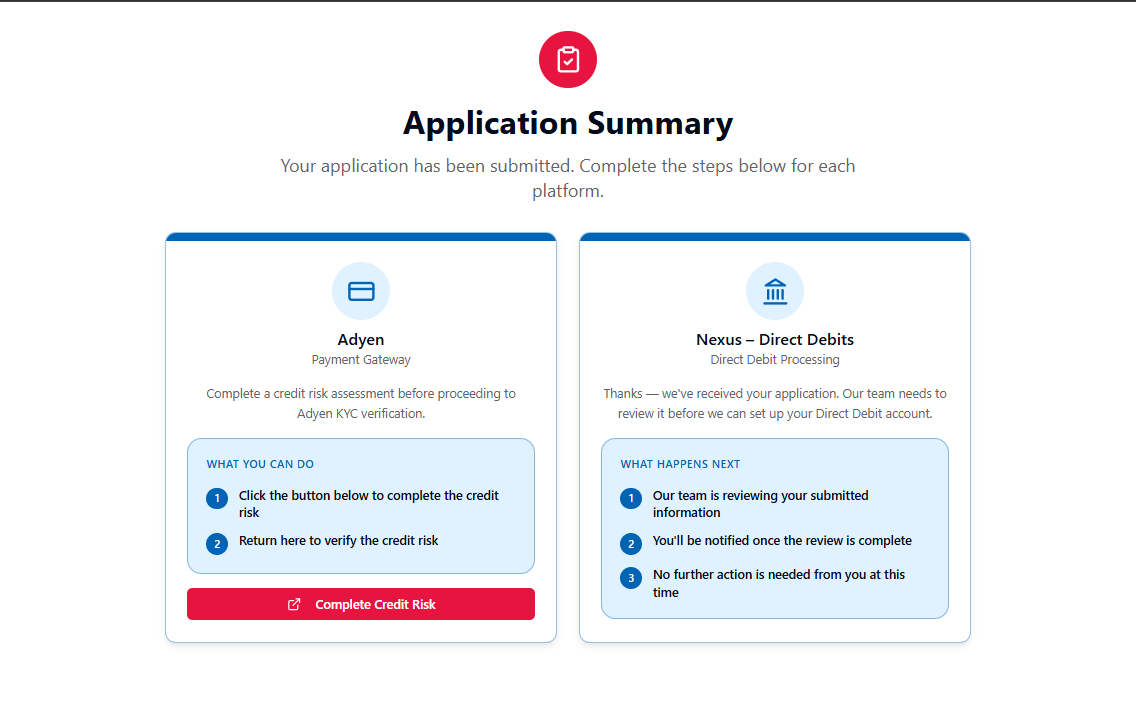
Application Summary
Once all required sections are complete, the merchant submits the application and is shown a per-platform summary. Each platform card explains what happens next: card platforms prompt the merchant to complete external steps such as the credit risk assessment, while the Direct Debit card confirms the application has been received and is awaiting review by the onboarding team.
3. Onboarding Person approves and provisions
Once the merchant has completed the flow, the Onboarding Person takes over in the Back Office Portal (Merchant Manager) to review and enable the merchant for Direct Debit.
The merchant's page lists each payment provider as a tab. Selecting Direct debit FM SUN shows the current stage of the Direct Debit onboarding — KYC, Credit Risk Decision, Provisioning and Payment Enabled — alongside all of the onboarding details captured from the merchant.
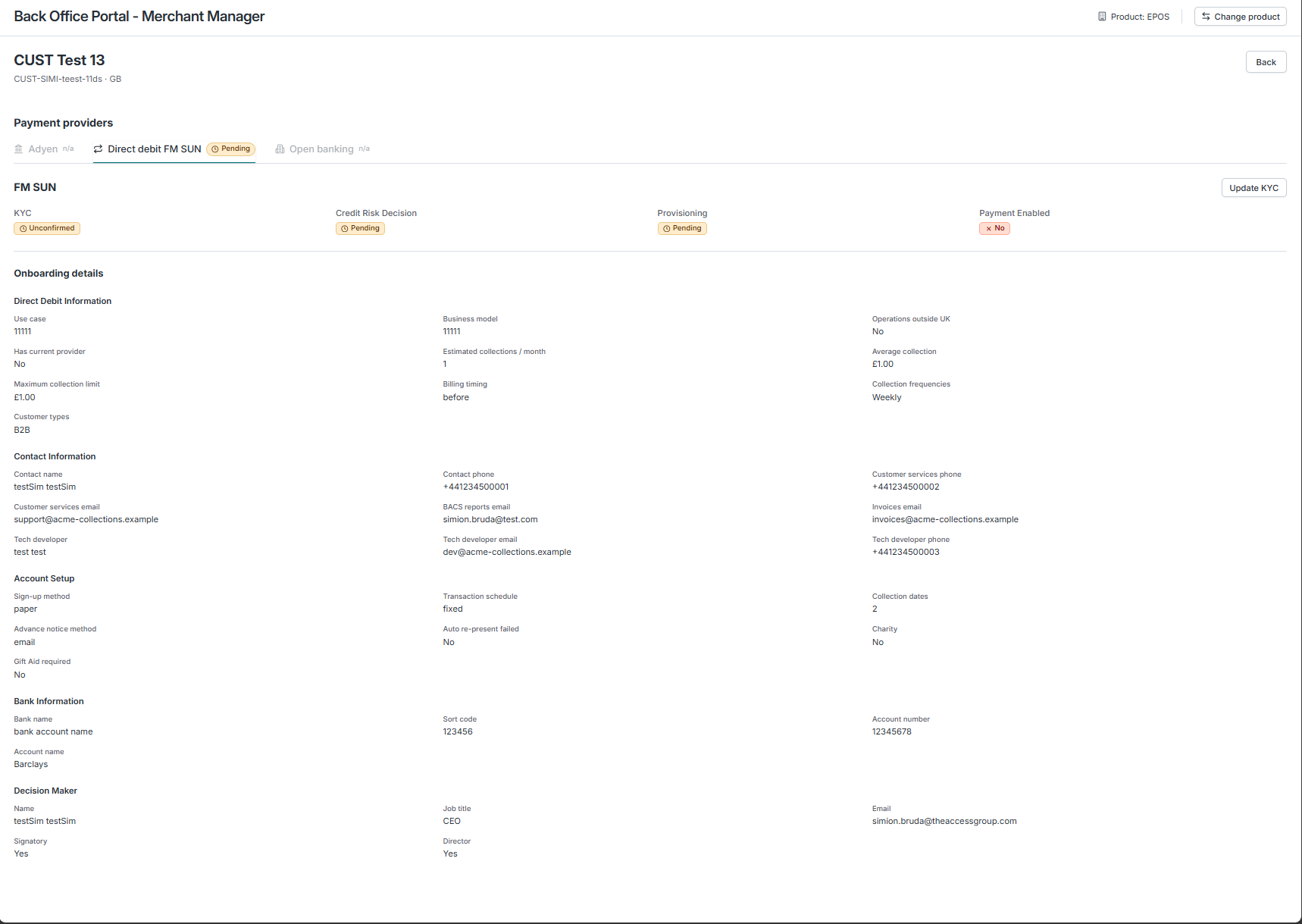
The Onboarding Person completes the following steps in order:
3.1 Approve the Ballerine workflow
Review the collected data-capture workflow in Ballerine and set the Credit Risk Decision outcome to approved.
3.2 Update the KYC status
Using Update KYC, confirm the Direct Debit KYC status, moving it from Unconfirmed to Confirmed.
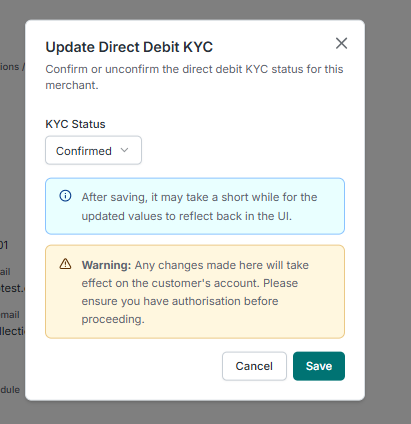
KYC must be Confirmed before provisioning can be completed — a provisioning update is rejected while KYC is still Unconfirmed.
3.3 Complete the provisioning form
Using Update Provisioning, set the Provisioning Status to Provisioned and supply the Direct Debit platform details. For a ddFmSun merchant the following are captured:
| Field | Description |
|---|---|
| Provisioning Status | Set to Provisioned to complete provisioning. |
| Direct Debit Merchant ID | The merchant's reference in the external Direct Debit system. Required. |
| API Key | The Direct Debit platform credential for this merchant, stored securely. Optional — leave blank to keep the current key. |
| SUN | Service User Number. Required for ddFmSun. |
| Registered Name | The SUN registered name. Required for ddFmSun. |
| SUN Short Name | The SUN short name. Required for ddFmSun. |
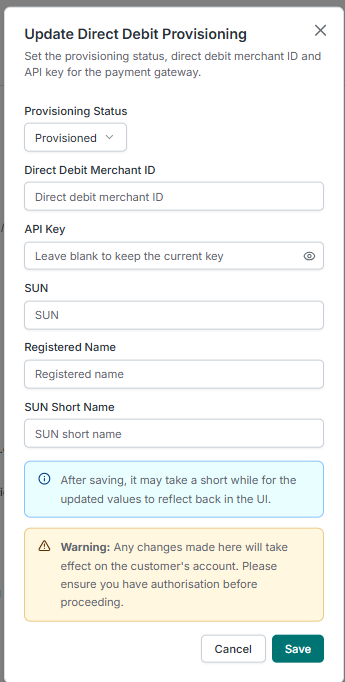
Completing this form moves Provisioning from Pending to Provisioned and sets Payment Enabled to Yes.
Changes made in the Back Office Portal take effect on the customer's live account. Ensure you have the necessary authorisation before proceeding.
4. Merchant is fully onboarded
With the KYC confirmed and provisioning completed, the merchant is now fully onboarded. The merchant can begin processing payments via Direct Debit, collecting from their end users.
Upsell — adding Direct Debit to an existing merchant
Upsell adds a payment platform to a merchant that has already been onboarded, rather than onboarding them from scratch. A common example is a merchant already live on Adyen for card payments who later wants to collect by Direct Debit — the SoftCo Product adds the ddFmSun platform to the existing merchant.
Endpoint
POST /api/v2/merchants/{merchant_id}/upsell-platform
{
    "divisionAccountId": "{{DIVISION_ACCOUNT_ID}}",
    "platforms": ["ddFmSun"],
    "ddFmSun": {
        "...": "..."
    }
}
For the full request structure, see the Multi-Platform Upsell API documentation.
Prerequisites and rules
- The merchant must already exist — you use the
merchant_idfrom the original onboarding. - The platform being added must not already be active for the merchant.
- A merchant can only have one Direct Debit platform. Because only
ddFmSunis implemented, a merchant that already has a Direct Debit platform cannot be upsold another. - Business information is not required — it was already captured during the original onboarding.
Upsell flow
The upsell follows the same shape as new onboarding, with the difference that only the newly added platform's sections need completing:
- SoftCo Product adds the platform — call the upsell endpoint with
platforms: ["ddFmSun"]and theddFmSunconfiguration object. No credit risk workflow or provisioning happens at this point; the real provisioning is deferred to the data-capture flow. - Merchant completes the new platform's sections — adding a platform re-opens the merchant's onboarding, so the merchant returns to the flow and completes the Direct Debit sections (Direct Debit Information, Contact Information, Account Setup, Decision Makers and Payout Bank Account), exactly as described in step 2 above. Sections already completed for the existing platform are not re-collected.
- Onboarding Person approves and provisions — the same Back Office steps as a new merchant apply for the added Direct Debit platform: approve the Ballerine workflow, confirm the KYC status, and complete the provisioning form (see step 3).
- Direct Debit is enabled — once provisioned, the merchant can process Direct Debit payments alongside their existing platform.
Statuses
| Stage | Field | Values |
|---|---|---|
| KYC | KYC status | Unconfirmed → Confirmed |
| Provisioning | Provisioning status | Pending → Provisioned |
| Provisioning | Payments enabled | false → true |