Onboarding OC
This guide explains the functionality of the Onboarding OC and how to embed it into your application.
It is written for product owners, integration teams, and anyone who needs to understand what the onboarding component does and how to get it running inside a host application.
1. What is the Onboarding OC?
The Onboarding OC is a plug-and-play onboarding component that guides customers through everything they need to start accepting payments. It is a self-contained widget that you embed into your own application -- it handles the full journey from welcome screen to final approval, without your application needing to build any of the onboarding screens itself.
What it does for the customer:
- Presents a welcome page to explain the process
- Presents the payment pricing configured at the product level (feature flagged)
- Collects business details and payment acceptance information
- Collects acceptance of statement of work (feature flagged)
- Collects credit risk assessment (through an external provider)
- Collects payment gateway identity verification (through an external provider)
- Presents a outcome status
What it does for you (the host application):
- Handles authentication and authorization (if embedded through the Evo enabled Orchestrator Oc).
- The customer never leaves your application (external steps open in a new browser tab).
- The component automatically adapts to the customer's situation (e.g. identify new vs. returning customer).
Package name: pay-shared-onboarding
2. Environments
| Environment | Component Name | Registry URL |
|---|---|---|
| Demo | pay-shared-onboarding-demo | https://mfe.pay.accessacloud.com/ |
| Production | pay-shared-onboarding | https://mfe.pay.accessacloud.com/ |
3. How to embed the Onboarding OC
The Onboarding OC can be embedded into both Evo enabled and non-Evo enabled SoftCo products.
Evo enabled SoftCo product
The Onboarding OC is embedded through the Orchestrator Oc (pay-group-payments-component-orchestrator).
For full details, see the Orchestrator Oc - Business Logic & Embedding Guide, specifically Section 6: Loading the Onboarding Component.
The SoftCo can choose to initiate the onboarding directly from the Onboarding OC or to first make an API request to the Merchant API v2 for full control of the customer experience.
Non-Evo enabled SoftCo product
The SoftCo product must first make an API request to the Merchant API v2, the response will return an authToken and merchantId to initialise the Onboarding OC.
4. The Onboarding Journey
4.1 - Begin or Continue
New customer
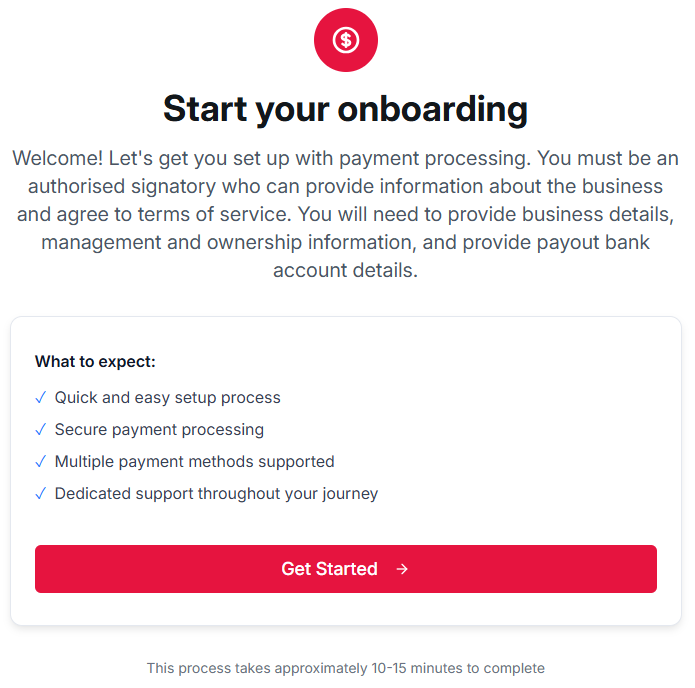
The customer is presented with a welcome screen explaining what the onboarding involves.
Returning customer
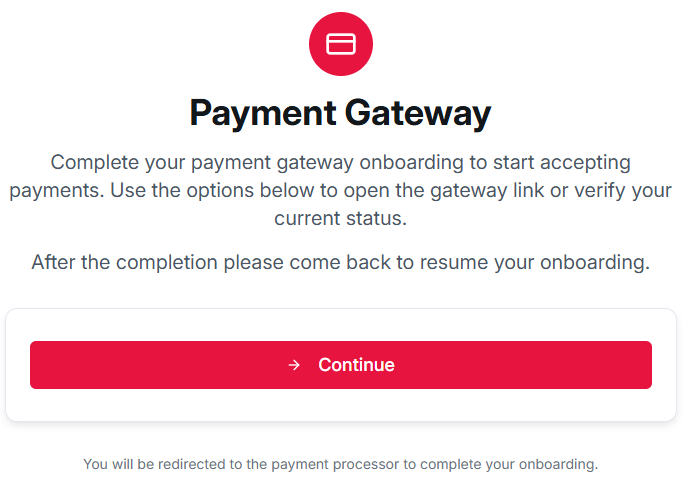
If the customer is returning to continue onboarding they will be presented with the following.
4.2 - Pricing
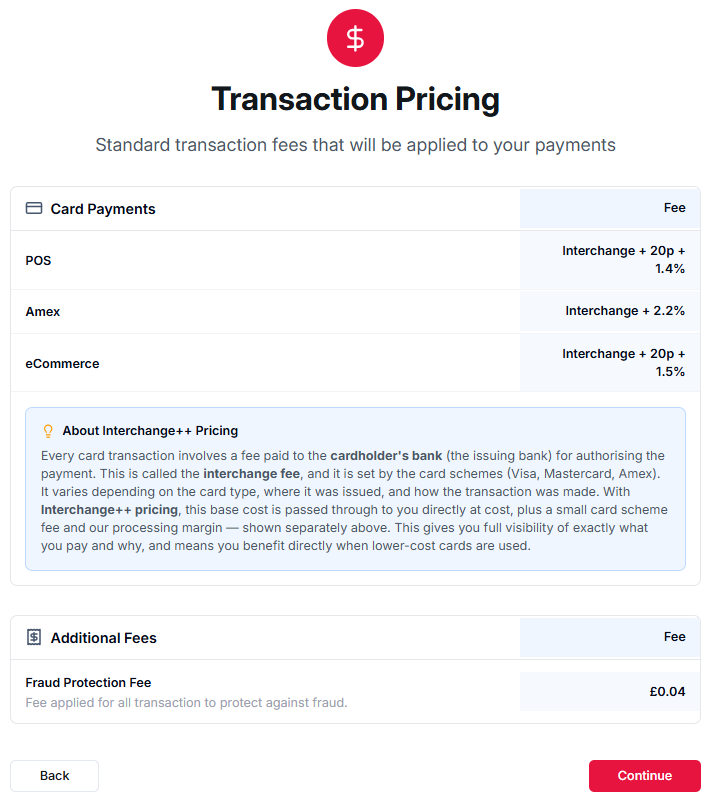
Feature flagged: The pricing page is feature flagged at the SoftCo product level to either display or not.
Configuration: The pricing values can be configured to show both IC++ and Blending pricing. Additional fees can also be presented for refunds, disputes etc.
4.3 - Data Collection
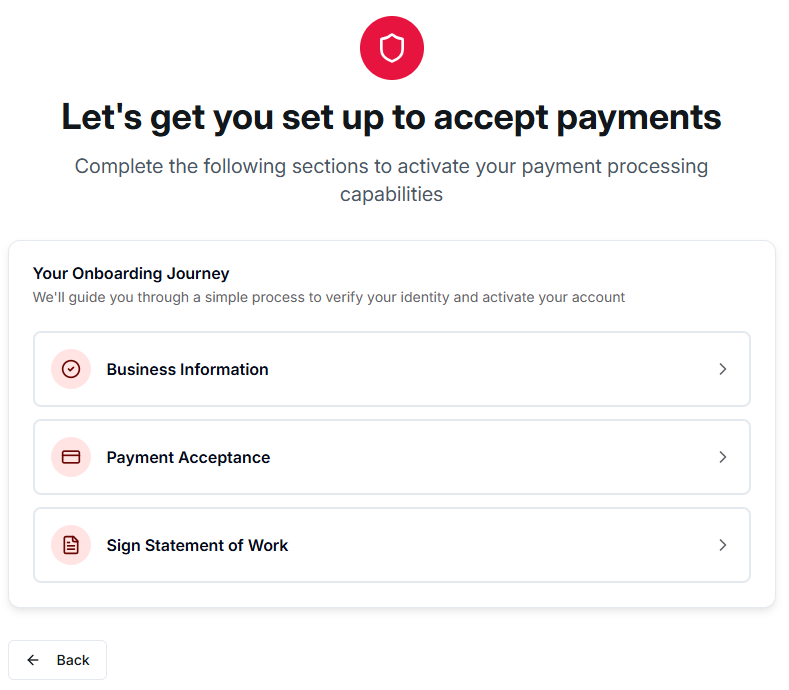
This is the main page where the customer provides their information. It is driven through a menu of sections that need to be completed before the customer can continue.
Once each section is completed, a verified checkmark will be displayed.
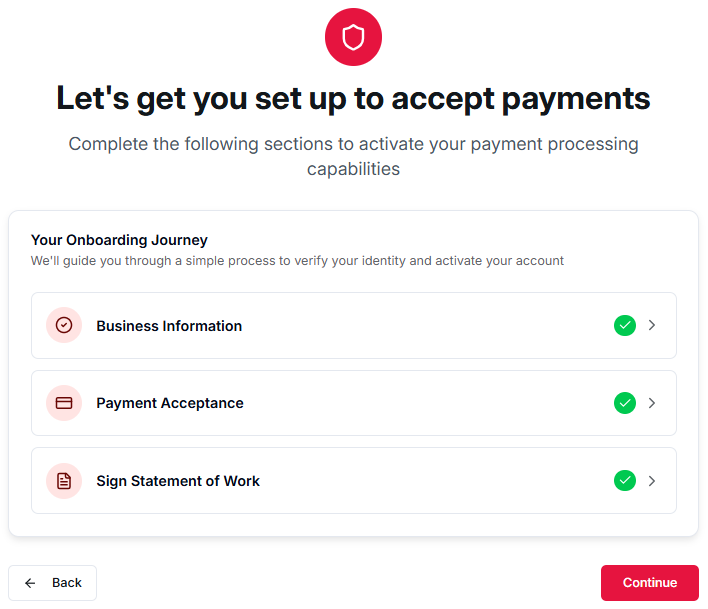
After all required sections are complete, a "Continue" button appears showing a Summary View where the customer reviews everything before proceeding.
4.4 - Review Your Progress
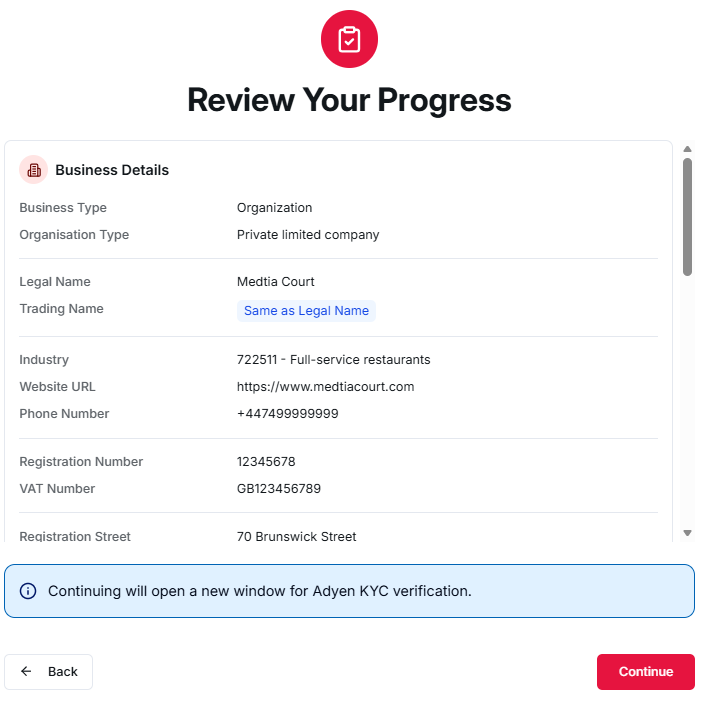
The data captured from the customer is presented to be reviewed.
After the customer continues the process, the data captured is submitted to the external providers and the customer will not be able to change any of the data collected to this point.
4.5 - Credit Risk Assessment
The customer is redirected to the external credit risk provider to complete the assessment.
The credit risk page opens in a new browser tab.
Configuration: Only presented to net new customers. Pre-approved customer will bypass this process as having been approved offline.
4.6 - Payment Gateway KYC
The customer is redirected to the external gateway provider to complete the identity verification.
See Know Your Customers.
The payment gateway page opens in a new browser tab.
4.7 - Application Status
The final step shows the current outcome:
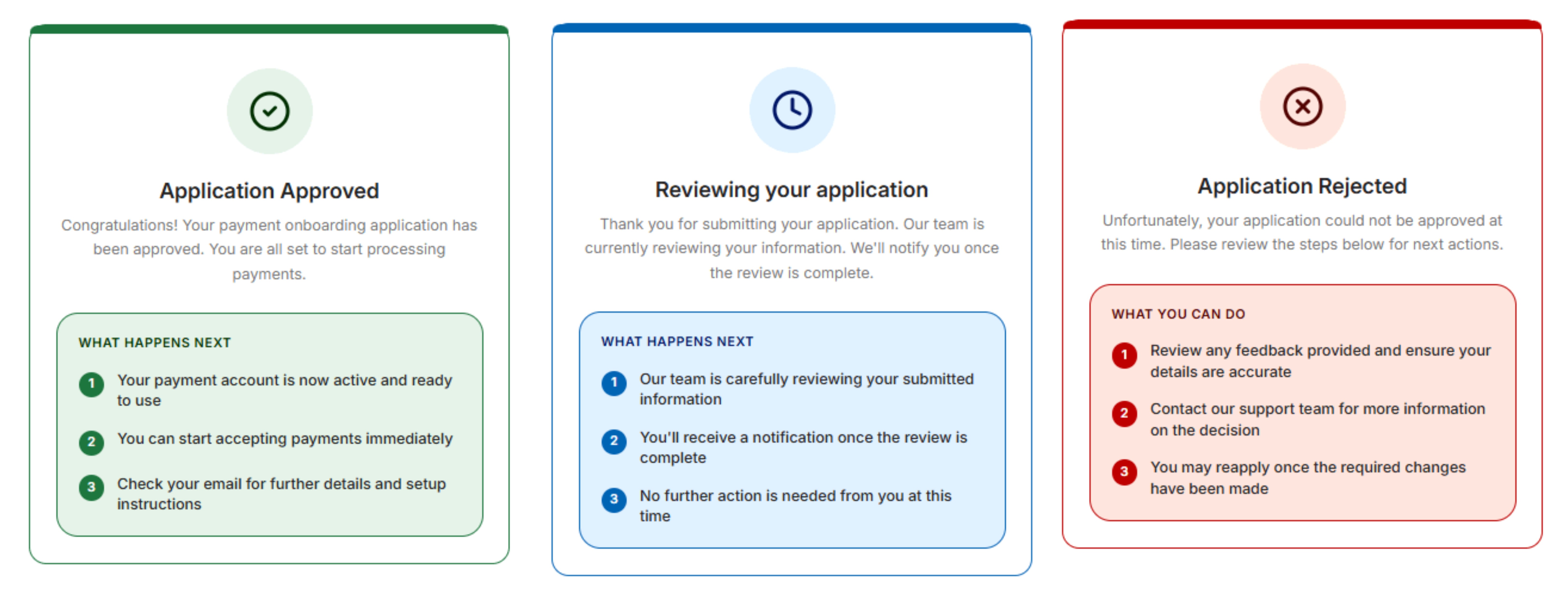
| Outcome | What the customer sees |
|---|---|
| Approved | "Application Approved". The SoftCo product will receive and event to enable processing payments. |
| Rejected | "Application Rejected" and information on what to do next. |
| Under Review | "Reviewing your application" and a message that no action is needed while we process it. |
5. How the flow adapts to each customer
The onboarding journey is not one-size-fits-all. The component automatically adjusts which steps are shown and what information is collected based on the customers situation.
5.1 Feature Flags
Each SoftCo product can configure which parts of the onboarding are shown. These settings are controlled by feature flags on the backend:
| Flag | What it controls |
|---|---|
| Show Landing Page | Whether the Welcome step appears. Automatically hidden once data collection is complete. |
| Show Pricing | Whether the Pricing step appears. Only shown to first-time customers. |
| Show Statement of Work | Whether the customer must review and sign a Statement of Work as part of data collection. |
| Collect eCommerce Channel | Whether eCommerce store details are collected. |
| Collect MOTO Channel | Whether Mail Order / Telephone Order store details are collected. |
| Collect POS Channel | Whether Point of Sale store details are collected. |
5.2 Risk Matrix
The PaySuite Risk and Compliance classifies the risk exposure of each SoftCo productinto one of four risk profiles, which determines whether the credit risk step is performed through the customer onboarding journey:
| Risk profile | Credit Risk assessment collected in new browser tab |
|---|---|
| Existing Customer, High Risk | No (pre-approved) |
| Existing Customer, Low Risk | No (pre-approved) |
| New Customer, High Risk | Yes |
| New Customer, Low Risk | No (data collected during customer onboarding and sent via API to external provider) |
6. What data is collected
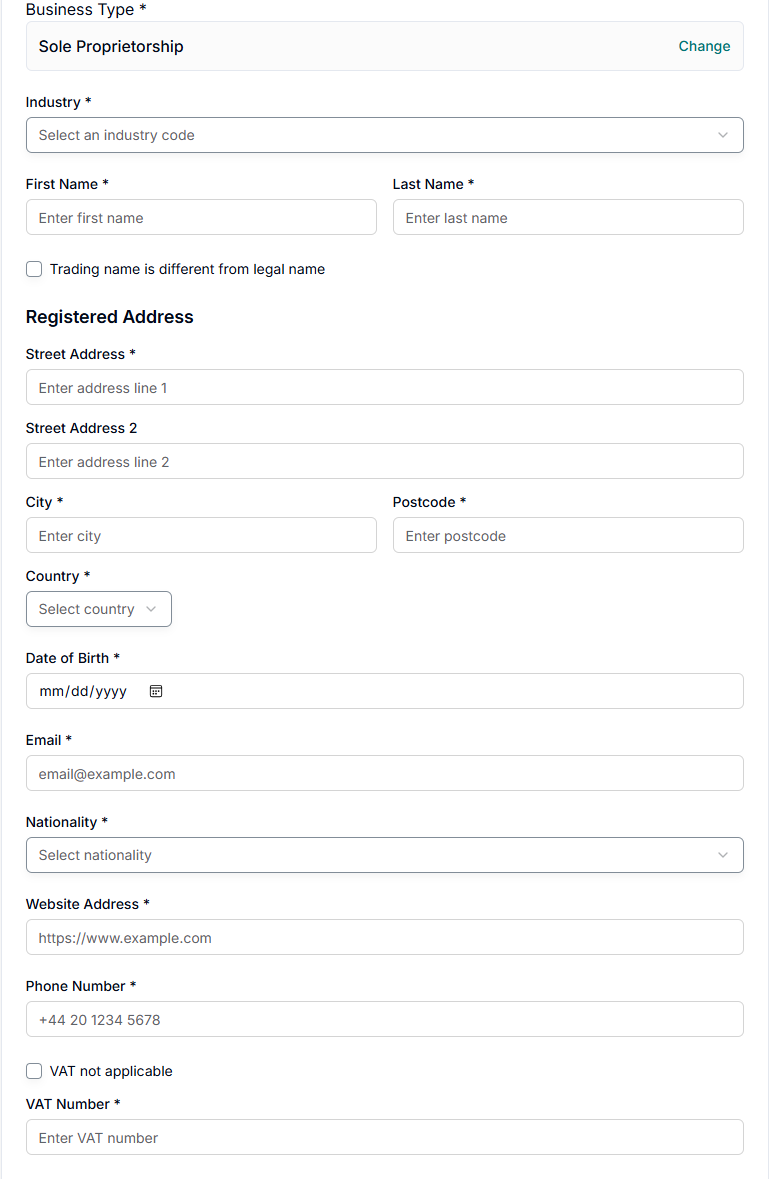
6.1 Business Information
Depending on the business type, the customer provides:
For a registered company (Organisation):
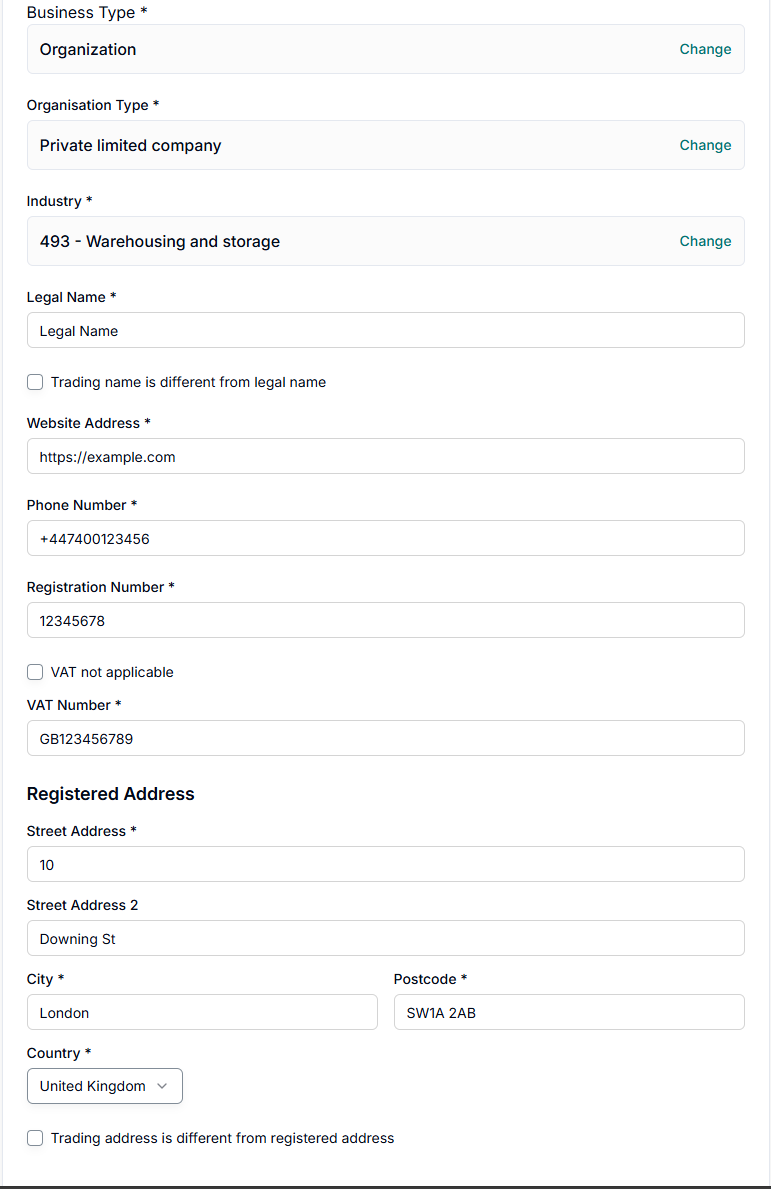
For a sole trader (Sole Proprietorship):
6.2 Payment Acceptance
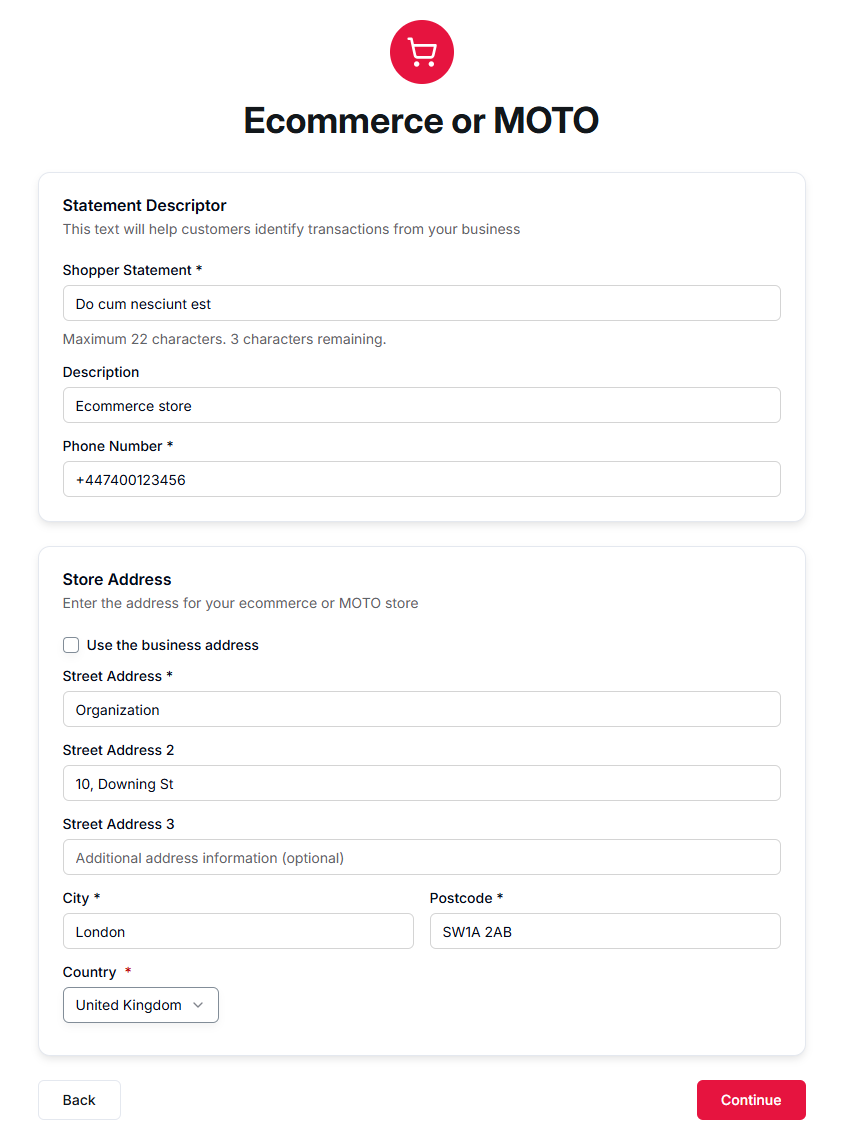
The customer defines where and how they accept payments.
Ecommerce or MOTO:
Point of Sale locations:
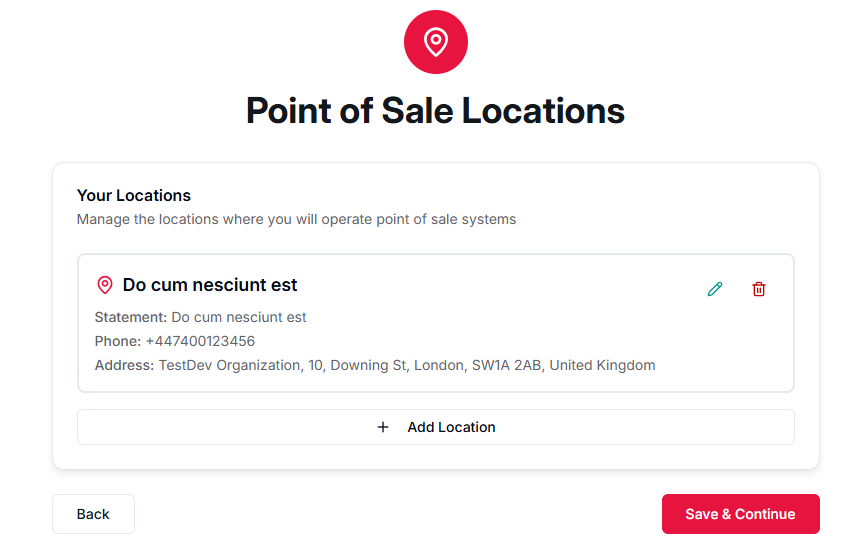
Adding a new location will present the same fields as shown on the Ecommerce and MOTO payments form.
6.3 Sign Statement of Work (feature flagged)
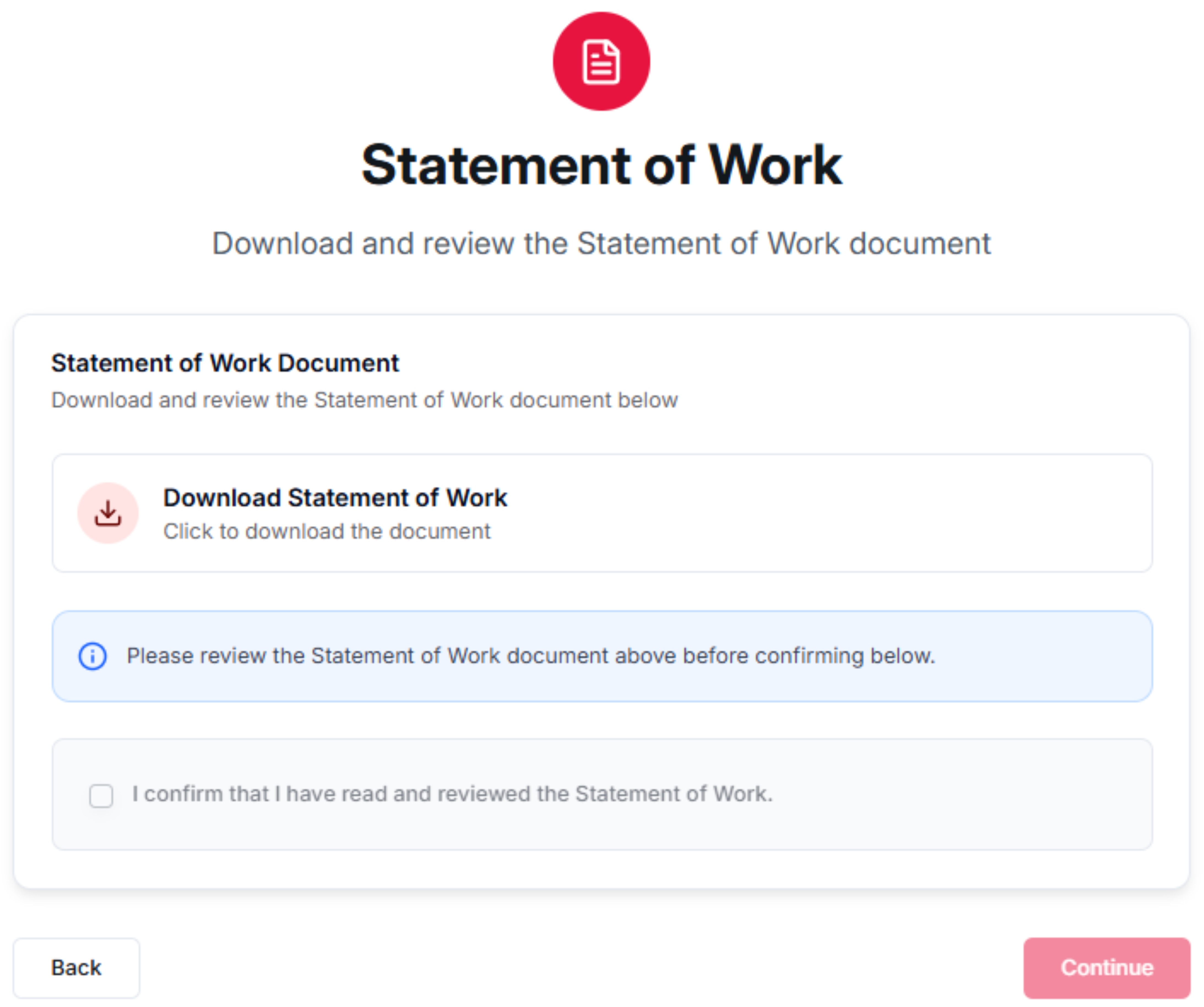
If enabled for the SoftCo product, the customer must:
- Review a PDF document (the Statement of Work)
- Confirm they agree by attesting to it
The system automatically records:
- Who signed it (name and email from their login)
- When they signed it (UTC timestamp)
9. Known limitations and edge cases
-
Pop-up blockers can break the flow. The Credit Risk and Adyen KYC steps open in new browser tabs. If the user's browser blocks pop-ups, these steps will silently fail to open. The component shows an amber "pending" card but the user may not understand why.
-
Ballerine unavailability. If the external credit risk provider is unreachable, the Credit Risk step will remain in a pending state. The component polls for the result but cannot recover from a provider outage — the customer must retry later.
-
Adyen KYC timeout. If the customer closes the Adyen KYC tab before completing verification, the component shows an amber "in progress" card with a button to re-open the Adyen page. The KYC session remains valid for re-entry.
-
Interrupted flows / session expiry. If the user leaves mid-onboarding or their JWT expires, returning to the component will reload the customer's current state from the backend. All previously saved data (business info, stores, statement of work) is preserved — the customer resumes from where they left off.
-
Data is cached for the session. The component fetches the customer state once and holds it in memory. It only refreshes when the customer submits data or moves to a new step. Stale state is unlikely but possible if backend changes occur during an active session.